Contact us
Email: hello@littlekeeps.in
Please include your Support ID and a short description of the issue. In the app, go to Settings, then Help & support, and tap Copy support ID — that puts it on your clipboard, ready to paste into your email. It is how we find your account. If you sign in with Apple and chose to hide your email address, this is the only way we can identify your account, so please do include it.
If you cannot open the app, tell us the email address connected to your account instead. Do not include sensitive information unless it is needed to resolve your request.
We aim to reply within 5 working days, and to privacy requests within 30 days. Sleepy Notes is run from India by one person, so replies may not arrive overnight — but every email is read.
If a story seems inaccurate or hurtful — about a festival, a tradition, or anything else — email us with "Story concern" in the subject line and tell us which story. We read every report, and we will correct or withdraw a story where that is needed.
Sleepy Notes and its support are available in English only.
Getting started
What do I get without paying anything?
Over 300 stories, played by one of our four narrators, for as long as you like. You can add one child, build routines, mark favourites, and record your own voice once — the recording itself is free. Nothing in the library is locked behind a purchase.
One thing to know before you use it: the free recording is once per account. It is not one voice at a time. If you record a voice and later delete it, you cannot record another free one — so if you are still deciding which parent should record first, decide before you record.
What costs money is having a story read in your own recorded voice. That runs on a paid speech service, so it is paid for with story credits.
Should I sign in with Apple or with Google?
Either is fine — but pick one and always use that one. It is how we know which account is yours, on every device you use.
If you sign in with Apple on your phone and Google on your iPad, whether you land on the same account depends on something you may not remember choosing:
- If you shared your real email address with Apple, and it is the same address as your Google account, both sign-ins lead to the same account. Your children, credits and voice are all there.
- If you chose "Hide My Email" with Apple, they are two separate accounts. Apple gives us a private address instead of your real one, so we have no way of telling that the two sign-ins are the same person. The second one starts empty — no children, no credits, no voice.
Nothing is lost when that happens: your things are still on the first account, and signing back in the way you did originally brings you straight back to them. But we cannot join two accounts together, so the simplest thing is to use the same sign-in every time.
What you will see when you sign in with Google
“Sign in with Google” is Google's own system, the same one behind the Sign in with Google button on thousands of apps and websites. It exists precisely so that you never hand your password to a small app like ours. You sign in on Google's page, Google confirms it is you, and Google sends us a signed confirmation with your email address on it.
We never see your Google password. It is never typed into Sleepy Notes, never sent to us, and never stored by us — there is nothing on our side for anyone to steal. That is the whole point of signing in this way, and it is why we offer it rather than asking you to invent yet another password.
Every screen you see during sign-in comes from Google, not from us, and each one names the app asking. It says Sleepy Notes and shows our logo. Checking that name is worth doing on any app, not just ours.
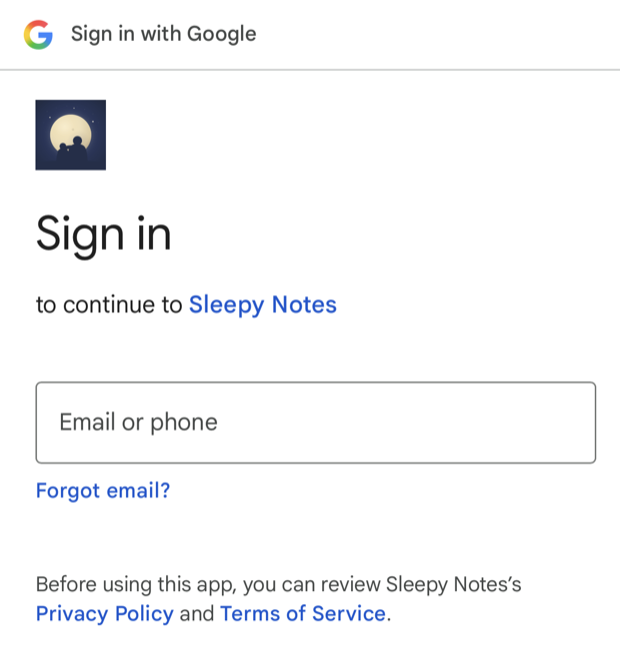
What follows is every screen you will meet, in the order you meet them.
1. Your iPhone asks whether to continue, and names the web address it is about to visit — accounts.google.com. That is Google's own sign-in page, exactly where you would expect to be sent. iOS names the destination every single time you sign in to anything, on any app; it is a safety feature doing its job. In this dialog you may see the app's name written as “SleepyNotes”, without the space — that is an internal name iOS reads from inside the app rather than the one we display.
2. You sign in on Google's page and pick your account. This is the page in the picture above.
3. The first time only, Google asks you to agree to what it will share with Sleepy Notes. This is the screen that decides what we can see, so here is exactly what is on it:
- Your email address. This is the only thing Sleepy Notes uses. It is how we know which account is yours when you sign in again or write to support.
- Your name and profile picture, which Google includes whether we ask for it or not. Google's sign-in system for iPhone apps always bundles those two with the email address and gives app makers no way to request less — we have set our side to ask for the email address only. They arrive inside the same signed confirmation as your email address, so our sign-in provider, Supabase, keeps them as part of your account record. Sleepy Notes never reads them and never shows them anywhere in the app, and deleting your account deletes that record along with everything else.
Nothing else is shared. No access to Gmail, your contacts, your files or your calendar, and nothing at all about your child. Google lists what is being shared on that screen before you continue, so you can check it there rather than take our word for it.
4. If you sign out and sign in again later, Google may show a shorter screen simply confirming that you are signing back in to Sleepy Notes. There is nothing new to agree to — you gave permission the first time, and Google is just checking it is really you. Tap Continue.
You can withdraw that access at any time from your Google account permissions.
Sleepy Notes does not build its own sign-in system: we use Supabase, an established company that provides accounts and databases for a great many apps, and your Sleepy Notes account lives there. They are named as one of our service providers in our Privacy Policy, which links to their own privacy terms so you can see exactly who we work with and why.
What languages does Sleepy Notes support?
The app itself is English only. Every screen, button and menu is in English, all 300+ stories in the library are written in English, and our four narrators read English. There is no translation of the app, and none is planned for this version.
Stories you write yourself are the one exception. If you type a story in Hindi, the narrator will read it aloud — including a voice you recorded in English. We have tried this and it works well. It is not a translation feature and we do not support Hindi anywhere else in the app, so treat it as something you are welcome to use rather than something we promise: how well it reads will vary from story to story.
A name from any language works fine as your child's name. If it is pronounced wrong, see My child's name is pronounced wrong below.
What ages is it for?
Every story is sorted into one of three listening stages, and you pick which apply to your child: Tiny listener (about 1–3), Little explorer (about 3–5) and Big dreamer (about 5–8). You can select more than one.
The stages you pick filter what you see. Browsing a category, or Top picks on the home screen, shows only the stories matching your child’s stages — so the library is already sized to them and you are not scrolling past stories meant for much older or younger children. Pick more than one stage and you see the stories from all of them, which is what to do if your child sits between two.
Is there anything for my child to watch?
No, and that is the point. The parent sets a story going and the child only ever hears it. There is no animation and nothing for them to hold or tap.
Please keep the phone and its cable out of the cot or bed, keep the volume low, and do not put headphones or earbuds on a young child. Sleepy Notes is for comfort and entertainment; it is not a substitute for supervision.
Does it work without an internet connection?
Stories you have made in your own voice do, and they are the only ones. Those are saved on the device and play from there, so a flight or a dead spot is fine.
Stories read by our narrators stream, so they need a connection. That matters most if you have not bought credits, because everything you can play is read by our narrators until you make a story in your own voice. You also need a connection to record a voice, to make a story, and to buy credits.
Is it on Android?
No. Sleepy Notes is an iPhone and iPad app.
Recording and using your voice
How do I record my voice?
Open the Family tab and choose to add a voice. You read a short passage aloud — the recording itself is about ten seconds, and the whole setup takes a minute or two — and the app builds a voice profile from it. Record somewhere quiet, at a normal speaking pace, and listen back before saving; you can re-record as many times as you like before you keep one.
Why do I have to agree to something before recording?
Because a voice is personal data and we would rather tell you exactly what happens to it than bury it. The notice explains that the recording goes to our speech provider to build the profile, that stories are narrated by an AI voice built from it rather than a recording of you, how long it is kept, and how to delete it. You have to read it and tick the box; there is no way to skip past it, deliberately.
How do I make a story play in my voice?
Open any story, tap the narrator row to choose your voice, then tap Generate. It takes a few seconds. Once made, that story plays in your voice from the device, as often as you like, and replaying it costs nothing.
How do I stop having to pick my voice every time?
Set your voice as your child's default voice. When you finish recording there is a switch offering exactly that; turn it on and every story starts on your voice. You can change it later in Family → the voice → Default voice. It applies to new stories only: ones you have already made keep the voice they were made in.
The switch appears once you have bought credits, since a story in your own voice is what credits are for.
What happens if I do not set a default voice?
Everything still works, but you do more tapping. Every story opens on one of our narrators, so to hear each one in your voice you have to open it, change the narrator, and generate — story by story, every time. Setting the default does that choosing once.
The shortcut still works either way. While a story is playing in one of our voices, the player offers a Generate in your voice button, so you can switch a story you are already listening to without leaving the screen. It appears whether or not you have set a default: if you have recorded more than one voice, tapping it asks which one to use, and setting a default simply answers that question once.
Two exceptions worth knowing. Stories you write yourself keep the voice you chose while writing them, whatever the default says. And Duet Voices stories are always read by two of your recorded voices, since the whole point is two narrators.
How do I change the voice for just one story?
Open the story and tap the narrator row. Choosing a different voice affects that story only; your default is unchanged.
Why is my story read by one of your narrators instead of me?
Either that story was made before you recorded, or your default narrator is still set to one of ours. A story keeps the voice it was made in — to hear it in yours, open it, choose your voice and tap Generate. That makes a second version; the first is not replaced.
Can more than one person record?
Yes, on a premium account — the Starter Pack allows two recorded voices, and you can go beyond two with the Add another voice purchase (see Can I add more voices — Grandma, Grandpa? under Credits and purchases). Once two people are recorded, the Duet voices stories alternate between them. Everyone who records goes through their own consent notice; one person's agreement never covers anyone else.
For duets specifically, any two of your recorded voices can read together — both parents, or a parent and a grandparent, whichever pair you want. With exactly two voices recorded, that is the pair, and duets simply use it. Once you have three or more, we suggest a pair and you can change it on any story: open the story, tap the narrator row, then Change, and pick the first and second voice yourself. Each voice needs its own name. If two grandmothers are both called Nani, give the second one a name you will recognise — two voices sharing a name are impossible to tell apart in the picker, the Family list and on the story itself.
Can I record my child's voice, or someone else's?
No. Sleepy Notes is for an adult recording themselves. Recording a child's voice is not allowed at all, and recording another adult needs their explicit written consent. Both are in the notice you agree to before recording, and in our Terms.
How do I delete my voice?
In the Family tab, open the voice and delete it. That removes it from the device and asks our speech provider to delete their copy too.
Deleting a voice also deletes every story you have already generated in it. That cannot be undone, and remaking those stories later costs credits again, so back up first if you want to keep them. Deleting a voice does not re-record one — adding a new voice afterwards is a separate step.
If the voice you are deleting was your free recording, deleting it does not give the free recording back. It is once per account, whether or not the voice still exists, so on a free account you would need to buy the Starter Pack to record again. The one exception is a voice we delete because it has gone unused for 24 months: that gives the free recording back. On a premium account you simply record another.
A recorded voice that has not been used to make or play a story for 24 months is deleted automatically, from our service and from Cartesia. If you open the app in the month before, it shows a warning. Making a story in that voice keeps it, and so does playing one in an up-to-date version of the app.
Credits and purchases
What is a credit, and what uses one?
A credit covers about a thousand characters of narration, so most stories use one or two, and the longest use three. Credits are spent when you generate a story in your own recorded voice. Stories played by our narrators are always free, however many times you play them, and replaying one you have already made costs nothing.
One other thing spends them: checking how your child's name is pronounced. That plays a short sample in your voice, so it is narration like any other. The screen tells you before you tap it, and each check is far smaller than a story.
Why did one story use two credits?
Longer stories use more. The charge follows the length of the text, not a flat rate per story.
What does the Starter Pack include?
60 story credits — roughly 40 stories — and it unlocks a second child profile, a second voice, duet narration, your child's name inside the stories, setting how that name is spoken aloud, and writing your own stories. The unlock does not expire and is not bought again; it lasts for as long as Sleepy Notes is offered. The Recharge Pack afterwards is credits only.
Can I add more voices — Grandma, Grandpa?
Yes. Add another voice is a separate one-time purchase, available once you have the Starter Pack. You reach it from the Family tab: tap add a voice once every voice you hold is already recorded. Each purchase adds one more voice slot, up to six recorded voices in total on one account — room for both parents and all four grandparents.
Each person records their own voice and agrees to the consent notice themselves, exactly as you did — you cannot record someone else. A slot is capacity, not a single recording: if you delete a voice, that slot can be used to record someone else. Generating stories in any voice spends credits as usual, and any two of your recorded voices can read a duet together.
Do credits expire?
No. They are not tied to a month or a billing period, and there is no subscription — both packs are one-time purchases.
I have run out of credits
Everything you have already made keeps playing, and every story is still there with our narrators. To make more in your own voice, buy a Recharge Pack from Settings.
Stories, routines and sound
How do I write my own story?
On a premium account, open My stories and write one. It is then treated like any other story: pick a narrator and generate it. You confirm the words are your own, suitable for a child, and not impersonating anyone.
A story can run to about 5,000 characters, which is a long bedtime story and costs around five credits at full length. Most are far shorter.
A story you write keeps the voice you chose while writing it, even if your child's default voice is something else. It also has to be made in one of your recorded voices before it will play at all — our narrators can only read stories that were recorded ahead of time, and yours was written just now.
A word in my own story is pronounced wrong
Type how the word sounds in square brackets straight after it, with no space in between: Dadi[Dah-dee]. The story shows Dadi and the narrator says Dah-dee. Do this for each word you want to change, every time it appears.
The mark covers only the letters right before it, so put it before an apostrophe: Dadi[Dah-dee]'s, not Dadi's[Dah-dee], which would change only the final s.
Brackets with a space before them are left exactly as you typed them, so Mom [smiling] still shows and reads as written. Stories you have already made keep their old audio until you make them again, which uses credits as usual.
For your child's name, use the pronunciation field on their profile instead — see My child's name is pronounced wrong below.
A story says it is for girls, or for boys
A few stories, such as some of our printed books, come in a girls' and a boys' edition. Each one only appears for, and only plays for, a child whose profile matches it. A child with no gender chosen, or set to other, sees neither.
If a story or a book's QR code says it is for girls or for boys, open Family and choose that child's profile, then try again.
How do I build a bedtime routine?
A routine is a short playlist you make once and play whenever you need it. Tap one on the home screen to start it, or edit it to add and reorder stories. You can also add a story to a routine from the story itself, or from the player while it is playing.
Inside a routine you can drag stories into the order you want, swipe one away to remove it, rename the routine, or delete it. Removing a story from a routine does not delete the story — it stays in the library, keeps any recording you have made of it, and can be played from anywhere else.
Each child can have up to three routines, of up to 25 stories each. New children start with a ready-made wind-down routine suited to their age, which you are free to change or delete.
Why did my child's routine change by itself?
If you changed their listening stage, the ready-made routine is rebuilt to match the new age — a Big dreamer should not be left with the toddler wind-down. This only happens to a routine you have never edited. As soon as you change one yourself it is yours, and we leave it alone from then on.
How do I generate several stories at once?
Open a routine. If any of its stories are not yet in your voice, a “Generate N stories in your voice” button appears below Add to routine. It generates them one after another, which can take a few minutes for a full routine. You can keep using the app while it runs, but do not close it — closing the app stops the run. Anything already generated is kept, and the button simply reappears with the smaller number so you can finish the rest.
If you have recorded more than one voice and your child has no default voice set, we ask whose voice to use before starting. That choice applies to this run only and does not change your child's default.
Stories already in your voice are left alone, so you are never charged twice for the same story. When it finishes you will see a summary of what was generated, what failed, and what was skipped.
If anything failed or was skipped, that summary stays on screen while you are on the routine, so you can read it after the message at the bottom has gone. It is not kept once you leave the routine — but nothing is lost, because the rows themselves still show which stories need generating, and the button reappears with the number still outstanding.
I deleted my routine. How do I get one back?
Open any story and tap Add to routine at the bottom of the page, then choose New routine. That creates a fresh routine with that story in it, and you can name it and add more from there. You can also do this from the player while a story is playing.
How do I tell which stories in a routine still need generating?
Each row in the routine editor says what it will sound like tonight:
- Nothing shown — already in your voice.
- Preset voice — it plays, but in one of our narrators rather than yours. The Generate button will make it yours.
- Preset voices — a Duet Voices story, read by two narrators. See below.
- Needs generating — a story you wrote yourself, with no recording yet. This one will not play at all until you generate it, because there is no ready-made narration for a story you wrote.
Why can I not generate a Duet Voices story?
A duet is read by two narrators together, so it needs two recorded voices — any two, such as both parents, or a parent and a grandparent. With only one recorded, we cannot make it in your voices, so it is left out of the Generate count and the button does not offer it. It still plays perfectly well in our preset pair in the meantime.
Record a second voice in the Family tab and duets become available. If a routine contains only duets you cannot yet generate, no Generate button appears at all — there is nothing it could do.
What happens if I run out of credits part-way through?
The run stops where it is. Everything generated up to that point is kept and is yours — you are never charged for stories that were not made. A Get more credits button appears at the bottom of the routine, and the Generate button updates to show how many are still outstanding, so you can top up and finish the rest whenever you like.
If you do not have enough credits to begin with, we tell you before starting rather than part-way through, and say how many the balance covers.
It says I have made too many stories this hour
There is a limit of 20 generated stories per hour on an account. It exists to catch runaway usage, and you are very unlikely to meet it in ordinary use — filling two long routines in one sitting is about what it takes. Nothing is lost and no credits are spent on a refused story; wait a little and carry on.
There is no waiting time between one story and the next, so you can make several in a row whenever you like.
A story is playing in the wrong voice
Stories play in a preset narrator's voice until you make them in your own. If you have set your recorded voice as the default for your child, the player shows a “Generate in your voice” button while a preset is playing. Tap it and the story keeps playing while the new version is made; when it is ready the button changes so you can switch to it straight away. After that, the story uses your voice everywhere.
My child has moved up an age group
Change their listening stage in the Family tab. Their default routine updates to match, unless you have edited it yourself — an edited routine is never overwritten.
How do I add background music?
Choose a track in the voice's settings. It is mixed underneath stories made from then on; stories already made keep whatever they were made with.
Can I play a story through a HomePod, AirPods or a speaker?
Yes, and nothing needs setting up in the app. While a story is playing, tap the AirPlay icon on the lock screen, or open Control Centre and tap it there, then pick your speaker or headphones.
Can I share a story with a grandparent?
Generated audio is for private listening inside your own family, in the app. It is not for sharing publicly, posting or distributing — see our Terms.
Your child's profile and data
How do I stop my child's name being used in stories?
Turn off name personalisation in their profile. Stories then use a generic name instead. Stories already made keep the name they were made with.
Is my child's data used to train AI?
We have switched it off, as far as the setting reaches. Your child's name leaves the device only inside the story text we send to be spoken aloud, and only if you have personalisation switched on, or when you play a pronunciation preview of it. We have switched model training off for our organisation with Cartesia, our speech provider, and by Cartesia's own description that setting covers exactly that: the text we send and the audio they produce. Their terms still give them a broad licence over what they receive, and their policy says an opt-out does not reach content sent before it was switched on, so we will not promise more than that.
No other detail about your child goes to Cartesia. No date of birth, no photograph, no location, no contact details — and never their voice. (Our own servers keep a random identifier for each child profile; the age range and themes you chose are sent, with no name, to pick suggested stories and are not stored; and our analytics are recorded against your account rather than the child. Our Privacy Policy lists all of it.) Recording a child's voice is not something Sleepy Notes does, and it is forbidden in the notice you agree to before recording.
One thing we would rather state than let you assume: Cartesia excludes voice cloning from that training setting, and keeps the uploaded recording, or a voice model built from it, for as long as your voice profile exists. That is about your recording as the parent, not your child — but it is the one place the opt-out does not reach, so we say so here as well as in our Privacy Policy.
We have configured the setting and Cartesia describes what it covers; we cannot audit a third party's systems, and we will not claim otherwise. If you would rather nothing of yours went to them at all, our four narrators involve no recording of you and no voice profile.
How do I delete a child profile, or my whole account?
Deleting a child profile removes the profile and everything belonging to it on this phone, including their generated stories. Deleting your account removes your account data, asks our speech provider to delete your voice, and clears what is on the device. Neither touches a backup file you have already exported — that copy is yours.
Where is my Support ID and why would you want it?
Settings → Help & support → Copy support ID. Tapping it copies the ID to your clipboard; the app does not print the value on screen, so paste it straight into your message rather than looking for something to read. It is a short scrambled form of your account identifier that cannot be turned back into your email. If you sign in with Apple and hide your email address, it is the only way we can find your account.
Common questions
A story will not play
Stories you have generated in your own voice are saved on your device and play from there, so they work without a signal. Stories narrated by one of our preset narrators are streamed, so they need a connection. If a story will not start, try a different story to see whether it is one story or all of them, then close and reopen the app.
I bought credits and they have not arrived
Open Settings and tap Restore purchases. That re-checks your purchase history and repairs your balance. Purchases occasionally take a few minutes to confirm, particularly if your connection dropped during the purchase. If credits are still missing after that, email us — include your Support ID and roughly when you bought.
I want a refund
Apple takes every payment made in the app, so Apple is the one that processes the refund — request it at reportaproblem.apple.com. Do email us as well, especially if something went wrong on our side, and we will help with your request. Before deciding, Apple may ask us how the purchase was used, such as whether its credits were spent. Your rights under consumer law are not affected — see Section 14A of our Terms.
Sleepy Notes works on one phone at a time
This is the most important thing to know, and everything below follows from it. Your child profiles, routines, written stories and generated audio live on the phone you made them on — not on our servers. That is deliberate: it is why your child's name never leaves your device except to be spoken aloud.
What is tied to your account and comes back the moment you sign in anywhere: your credits, your premium unlock and your voice profile. Everything else moves with a backup file, and only with a backup file.
You can be signed in on a second device — an iPad, say — but each one keeps its own profiles. They do not sync, and a profile made on one will not appear on the other.
Can my partner and I share the same stories?
Not between two separate accounts. Children's profiles, written stories and generated audio belong to the account that made them, and there is no way to join two accounts together or invite someone into yours.
What does work is signing in to the same account on both phones. Your credits, your premium unlock and your recorded voices are shared straight away, so anyone who has recorded can make a story in their own voice without recording again. The library itself still moves only with a backup file — so back up on the phone that has the stories and restore on the other one.
Worth knowing before you do it the other way: a story that already exists on one phone can be made again on the other, but generating it a second time uses a credit, exactly as it did the first time. Restoring a backup brings the audio across without costing anything.
Does a backup keep my two phones in sync?
No. There is no sync of any kind, and there is no automatic sync coming. A backup is a copy, taken at the moment you made the file. Anything either device does afterwards stays on that device: stories you generate, routines you change, favourites you add.
Our recommendation: use one device. Once you have restored onto a new phone or iPad, make that the one you use. Two devices do not break anything immediately — they drift apart, quietly, and there is no screen that will tell you they have.
If you genuinely need both, you have to sync them by hand, every time: make a fresh backup on whichever device you have been using, then restore it on the other. Miss that step and the two libraries simply diverge. Restoring the same file twice is safe — it finds everything already there the second time. Anything you have edited yourself is left alone, and a story you changed more recently on this device keeps your newer version.
What happens if I delete the app?
Everything saved on that phone goes with it: your children's profiles, their routines, stories you have written, favourites, listening history and every story generated in your voice. Reinstalling the app — even on the same phone, minutes later — starts empty. Do not rely on your phone's own iCloud backup to bring the app's library back; the only thing we promise will restore it is a backup file made in the app before you delete it.
What you do not lose: your credits, your premium unlock and your recorded voice all live on your account and come back the moment you sign in again.
So, in order of preference: make a backup first (Settings, then Back up my library) and restore it after reinstalling — that brings everything back and costs nothing. Without one, you can add your children again and regenerate stories in your voice, but each regeneration spends credits exactly as it did the first time, and written stories, routines and favourites cannot be recovered at all.
If I sign in on a new phone, does my old one stop working?
Not by signing in. That alone does not sign you out anywhere, and your credits, your premium unlock and your voice all keep working on both devices at once.
What does not travel is the part saved on the device: your children's profiles, their routines, and the stories you have generated. Restore a backup on the new device and those come back — including your children's profiles.
There is one choice that does change the old phone, and the app asks before it happens. Setting up a child on the new device offers you two options:
- Restore a backup brings your children across with their stories, routines and favourites. Nothing is removed anywhere.
- Start fresh makes this the phone your account uses, and clears the profiles saved to your account — so the ones on your old phone stop being recognised and disappear from it. Choose this when the old phone is gone, or when you have no backup and are starting over.
Your credits, your premium unlock and your voice profile are unaffected either way. And a backup is still the only thing that moves stories between phones.
Moving to a new phone or iPad — step by step
Do this in order. The backup is the only copy once it leaves the old phone, so make it before you wipe or trade in anything.
- On the old phone: open Settings and tap Back up my library. Choose where to save the file — iCloud Drive, Files, Dropbox or anywhere you can reach from the new phone.
- On the new phone: install Sleepy Notes and sign in with the same Apple or Google account you used before. Your credits and voice profile appear straight away.
- Restore before you add a child. The app offers this as soon as it notices your profiles are elsewhere; tap Restore a backup and pick the file you saved. If you have already dismissed it, tap Used this app before? Restore a backup under the Add a child form, or open Settings and tap Restore from a backup.
- Check that your children, routines and stories are all there. A restore adds what is missing and never deletes a story; where the same story exists in both places, the newer version wins.
Restore before you add a child, not after. A restore brings your children back with the stories, routines and favourites already attached to them. Add a child first and you get a second, empty profile instead, with none of that history. Changing your mind is fine right up until you add one — even if you chose Start fresh, the restore link under the form still works.
My old phone is lost or broken and I have no backup
Sign in on the new phone. When it asks, choose Start fresh — that sets this phone up as the one your account uses, and clears the profiles left behind on the old one so they do not hold your plan’s limit. Then add your child again as you did the first time. Your credits, premium unlock and voice profile are unaffected.
The generated stories cannot be recovered — they only ever existed on the old phone — but you can make them again; each one uses a credit.
I signed in a different way and my account looks empty
Sign out and sign back in the same way you did the first time — with Apple if you started with Apple, with Google if you started with Google. Your children, credits and voice profile are still there on that account.
Signing in with Apple and signing in with Google do not always lead to the same account. If you chose Hide My Email when you first used Apple, Apple gave us a private address instead of your real one, so we cannot tell that the two sign-ins belong to the same person — and the second one starts a brand new, empty account. Nothing has been deleted; you are simply looking at the other account.
We cannot join two accounts together, so the answer is always to go back to the original one rather than to set things up again. If you are not sure which it was, it is the one you used when you first added your child. If you bought credits on the account you no longer use, contact us and we will move them across.
I have a new phone and my stories are gone
See the two answers above. In short: audio, profiles, routines and written stories live on the device, so they arrive on a new phone only through a backup file. Your account, credits and voice profile come back on sign-in by themselves — as long as you sign in the same way you did originally (see the answer above).
If you have no backup, the stories can be generated again; each one uses a credit. Making a backup before switching phones is the way to avoid that.
What is actually in the backup file?
Your children's profiles (including their name and any pronunciation spelling), your generated audio, the stories you have written, your routines, your favourites and your listening history. It is a single file, it is not password protected, and you choose where it goes. We never receive it, and deleting your account does not touch a copy you have already saved.
It does not contain your credits, your premium unlock or your recorded voice — those belong to your account and come back when you sign in, on any phone.
A backup can only be restored by the account that made it. Handing the file to a partner who uses their own account will not work; the app checks and refuses it before reading anything.
If a story's audio file is missing from the device when you back up, that story is left out and the app tells you how many were affected. Saving a second backup on the same day never replaces the first — it takes the next free name — so check the date before restoring an older one.
Does restoring overwrite what is already on this phone?
A restore never removes anything, and it never touches your recordings, routines or favourites that are already here. It adds what is missing and tells you afterwards what it added and what it skipped, and why.
There is one case where it replaces rather than adds, and it is deliberate: a story you wrote, where the copy in the backup was edited more recently than the copy on this phone. The newer wording wins, so an edit you made on your other phone is not thrown away. If this phone has the more recent version, yours is the one that is kept.
Two things it will not bring back: a child profile you deleted from this account, and anything belonging to one. Those were removed on purpose, so a restore leaves them removed.
One more worth knowing if you are restoring a two-child backup onto a free account, which holds one profile: the second child will not fit, so that child and their stories are skipped. The summary says so. Buying the Starter Pack first, then restoring, brings both across.
My child's name is pronounced wrong
Edit the child profile and fill in the pronunciation field — spell the name the way it sounds rather than the way it is written. The field is part of the Starter Pack unlock, so it appears once you have bought it and have the child's name switched on.
Stories you have already generated were narrated using the old pronunciation, so they no longer match the profile. The app will tell you before you save, and those stories are deleted when you confirm. You can create them again whenever you like; each one uses a generation credit.
Privacy and data requests
To request access, correction, deletion, consent withdrawal, or help with a privacy question, email hello@littlekeeps.in . We may need to verify your identity before acting on the request.
Found a security or privacy problem?
Email hello@littlekeeps.in with "Security" in the subject line, telling us what you found and how to reproduce it. We acknowledge every report within 72 hours and will tell you what we found. Please give us a reasonable window to fix it before publishing details, and do not access anyone else's data while testing. We do not run a paid bounty programme.
Account deletion
Account deletion is available inside Sleepy Notes from Settings. Deleting your account removes your account data, child profiles, voice profile references, and any remaining on-device data, subject to technical completion and any limited legal retention obligations. We also ask our voice provider to delete each of your voices, and we ask our analytics and payments providers to delete the customer records they hold for you. Analytics events already recorded are not tied to your name or email and are not deleted. See Section 9 of the Privacy Policy for the full detail.
If you cannot access the app, email us from the account email address and ask for help with account deletion.